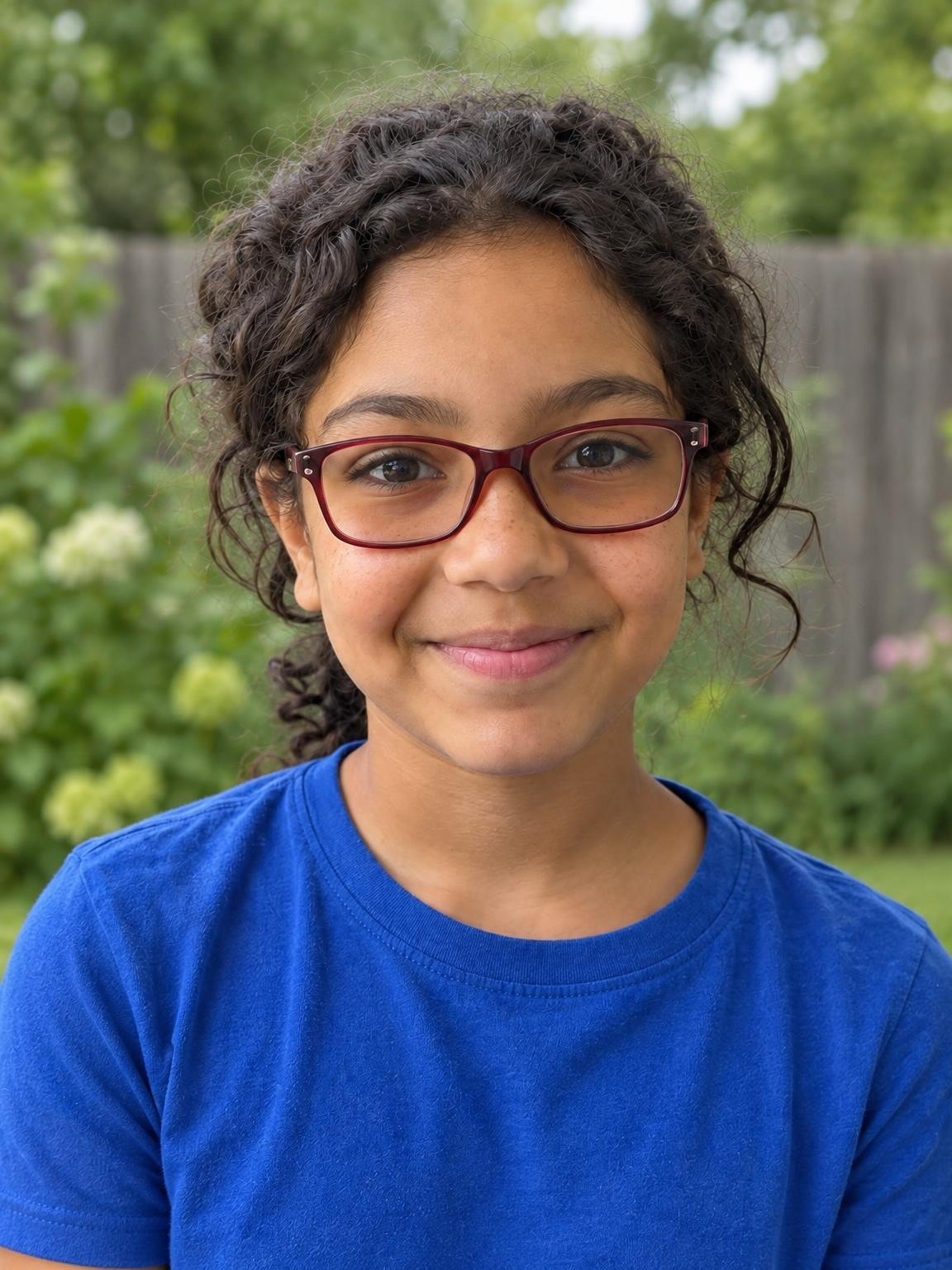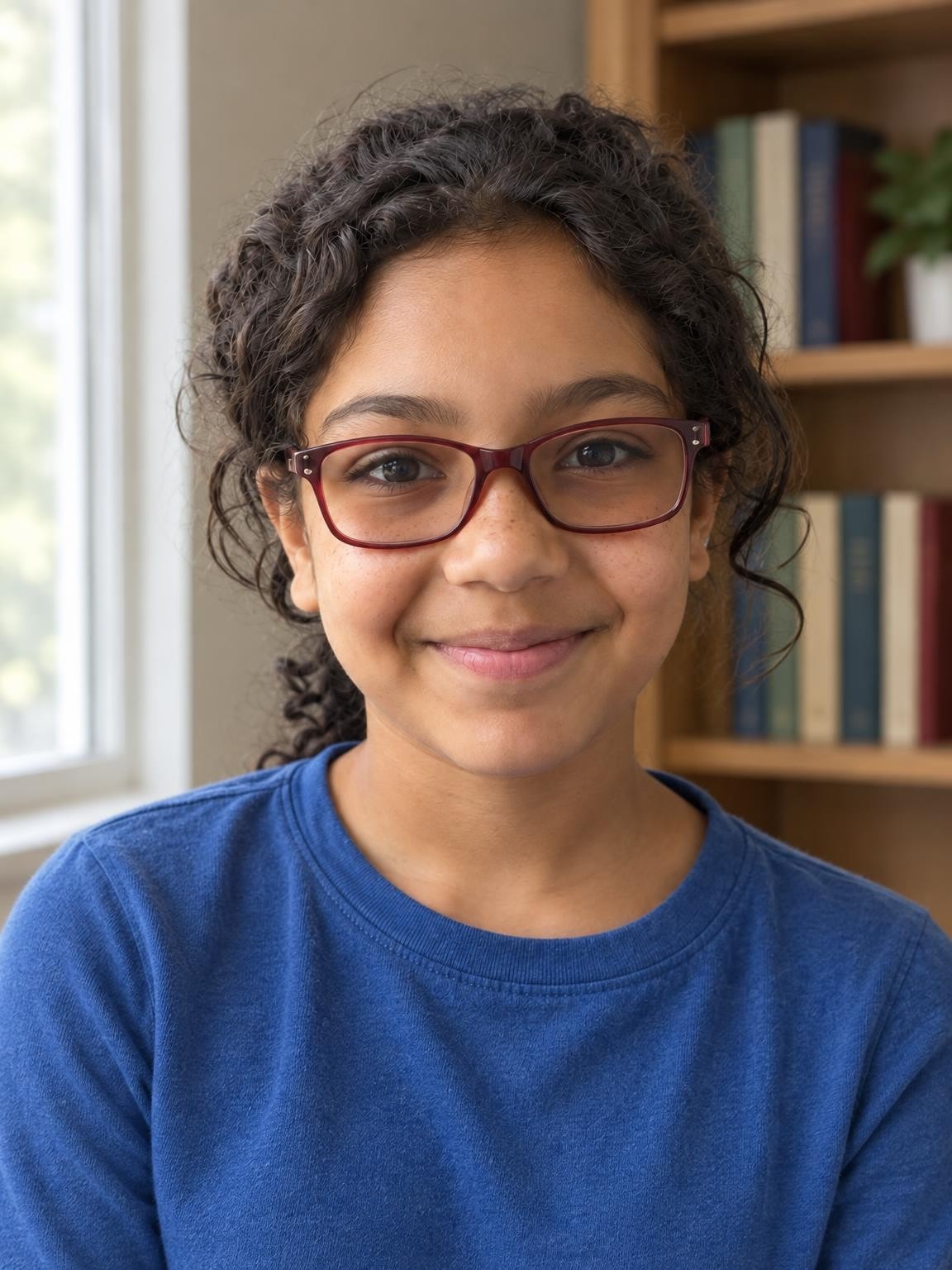
Homeschool Window Light
An individual portrait in a simple home learning space.
Try this settingHomeschool pictures · Free preview
Mark another year of learning with an AI portrait in soft window light or a garden setting. Start with your child’s everyday photos.
Create my free preview1 free watermarked preview. No account or card.
30 digital portraits for $19 if you choose a gallery.
One reference. A new portrait. Fictional demo
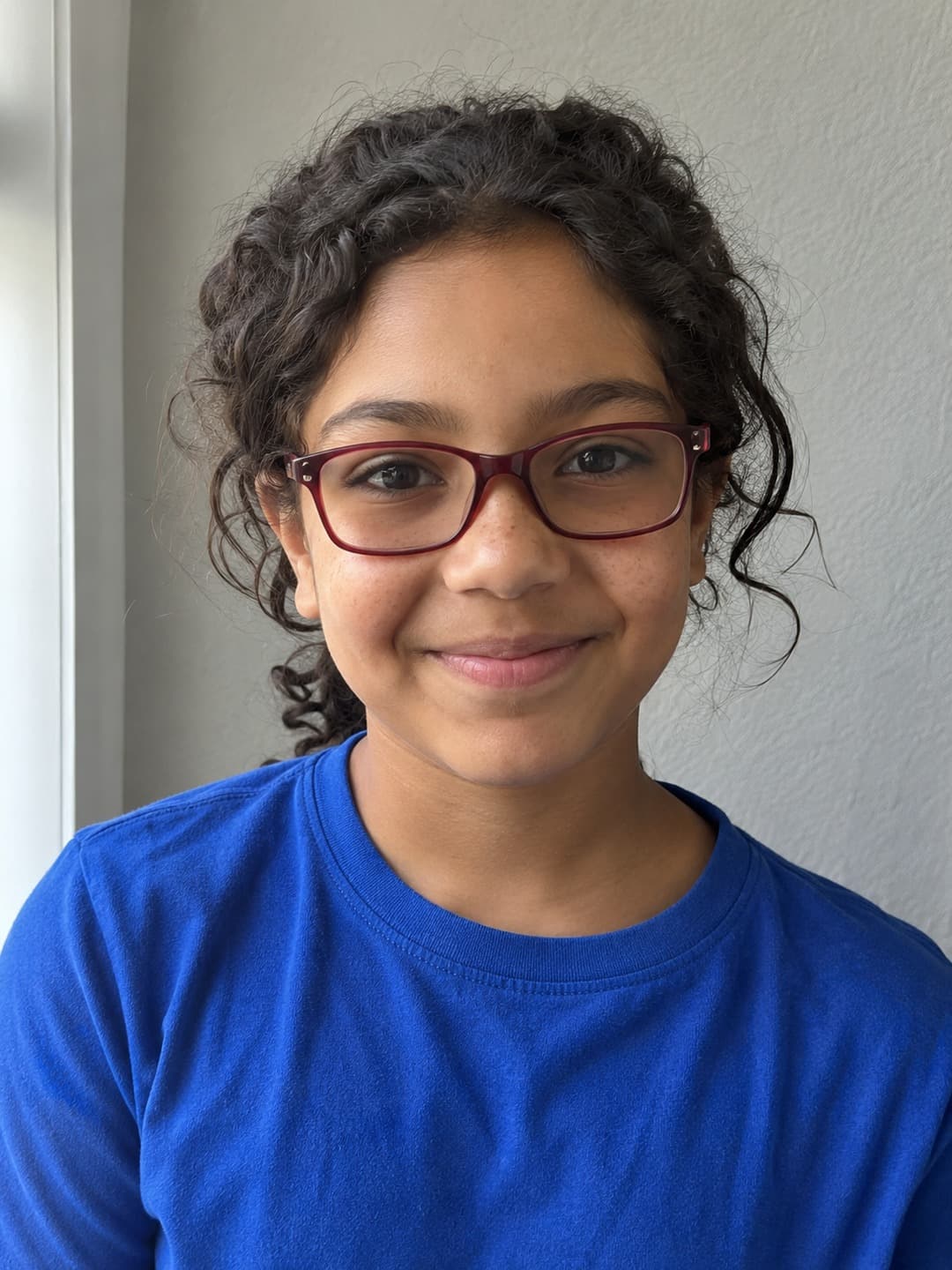 Reference photoHomeschool Window Light
Actual output from our portrait renderer. Your results will vary.
A homeschool portrait can mark the start of a term, a completed project or simply another year of growing up. Choose a consistent look for an annual album, or a relaxed outdoor scene that fits your child’s personality. Each child gets their own preview and gallery; a homeschool group booking is not needed.
Create each child’s individual portrait separately. Add names and school-year labels later in your album layout.
Select a setting above to see its matching references and result, or start your own preview below.
More fictional subjects, with actual AI results from our portrait renderer. These are demonstrations, not customer photos or a guarantee of likeness.
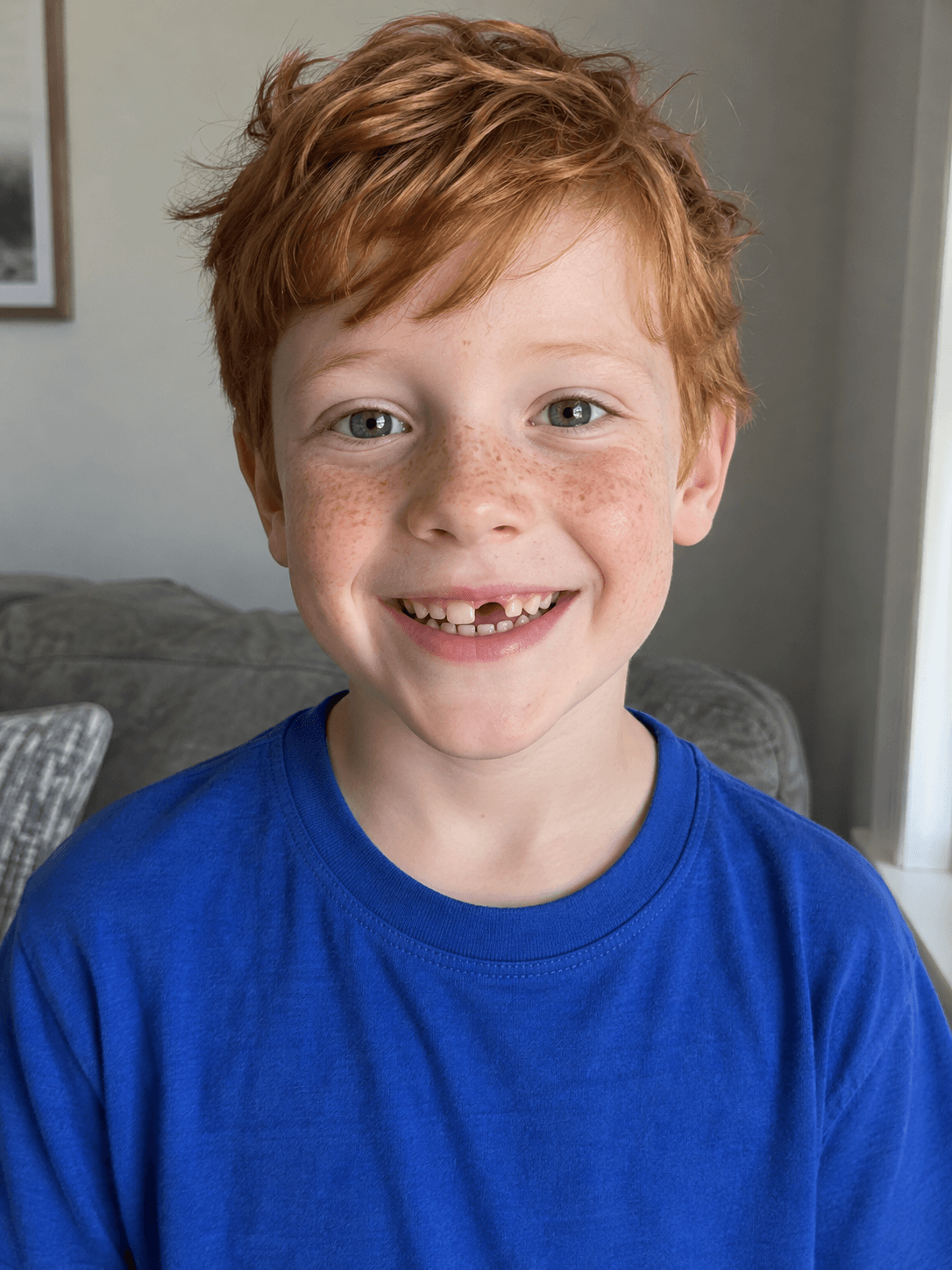
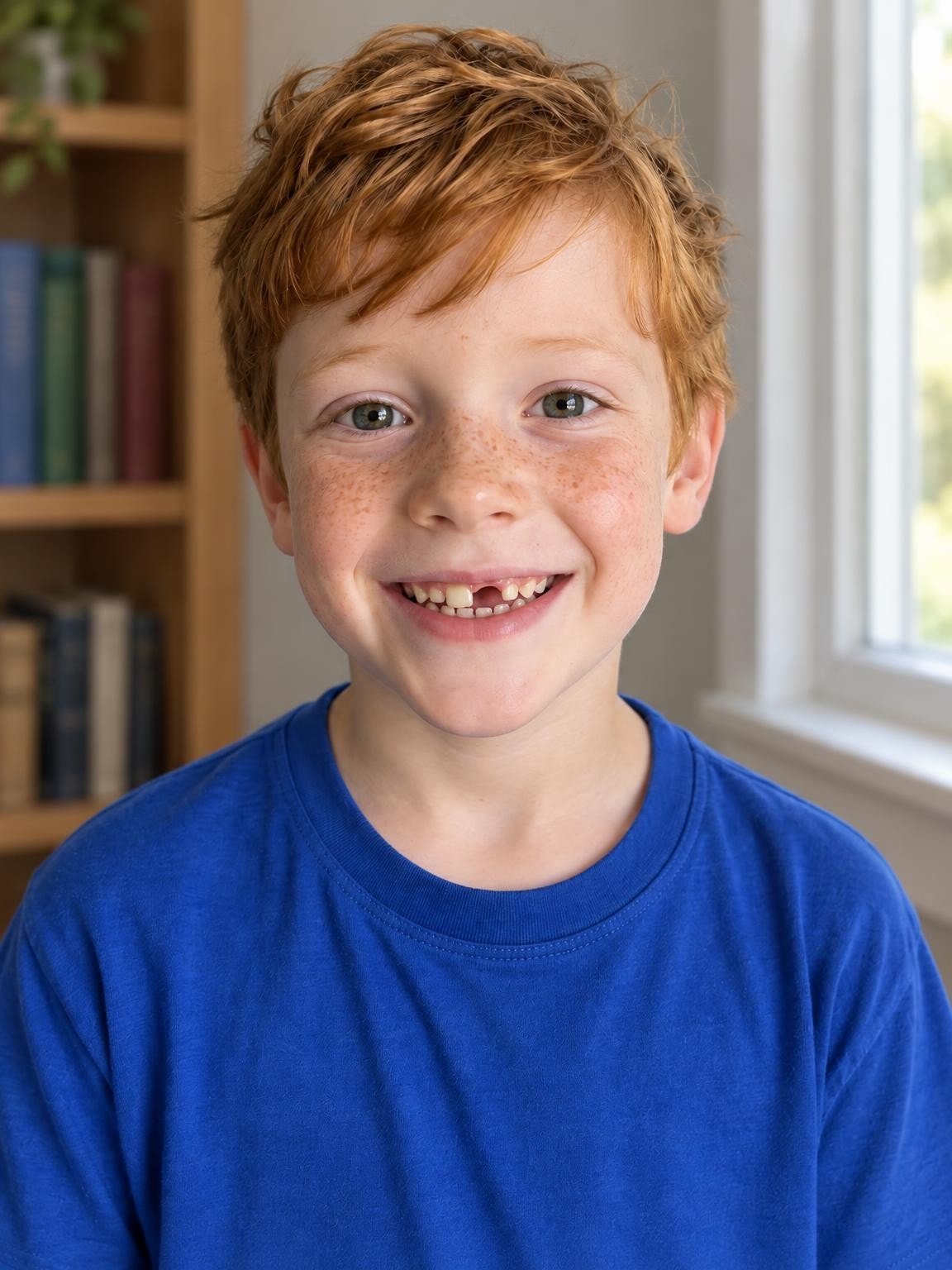
Compare the face, freckles and tooth gap. Small details can change even when the overall face looks familiar.
Use 1–6 clear photos. The setting you selected here will be ready in the creator.
Compare the face with your references. Look closely at glasses, teeth, hair and hands before deciding.
Pay once for 30, 60 or 120 portraits. Download the originals as they become ready; printing is separate.
Choose a gallery of new portrait variations after checking your free preview. Keep your favorites; printing is separate.
Keep the exact portrait you approve, plus your chosen number of new variations. Every gallery includes original-size downloads without watermarks, your selected scenes, and support for eligible quality issues under our refund policy.
Start with a free preview and one correction. No account, no subscription.
Help with your galleryThe original examples on this page are 1152 × 1536 pixels. Check the actual dimensions and crop of your download before ordering prints. Check a photo’s crop and print size.
Start a separate preview for each child. Use 1–6 recent photos of that child only, with their face large enough to inspect. Consistent reference lighting helps you judge each result more easily.
Window Light uses a simple study space with a soft bookshelf background. Outdoors uses a quiet garden. The backgrounds are created by AI, so they will not reproduce your actual home or learning room exactly.
For a coordinated sibling album, give each child the same simple color direction in the outfit notes. Avoid text-heavy shirts or detailed uniform requests, and review each child’s likeness independently.
Keep the original downloads, then add a grade, year or caption in your album or print layout. The generator is not a reliable way to place precise names or grade labels inside the photograph.
No. You can create an individual portrait whenever it suits your family. There is no group booking, school account or minimum class size.
For a simple studio backdrop and head-and-shoulders crop, use the School Picture Day collection. The homeschool scenes here focus on a home-study or garden setting.
No. Your reference photos guide the person’s likeness; the selected scene creates a new background. These presets do not preserve or reconstruct your room.
Ask the organiser whether AI-created portraits are accepted, then check their crop, background and resolution requirements. We cannot guarantee that a generated portrait will meet their rules.
Your first watermarked preview is free, with no account or payment card required. Paid digital galleries start at $19. You choose a gallery after reviewing the preview; there is no subscription. Printing and shipping are not included.
Not always. AI creates a new image, and facial details, age, clothing and hands can vary. Compare the preview with your references before paying. The people shown on this page are fictional demo subjects, not customers or evidence of a guaranteed result.
Use 1–6 clear, recent photos of the person you want in the portrait. Keep the face visible and avoid filters or sunglasses. For an individual school portrait, include only that child in the references. Upload photos you have permission to use; a parent or guardian should manage a child’s session.
For a quality-issue review under our refund policy, contact us with your gallery link, affected photo numbers and the specific issue. You can also request deletion. Our privacy policy explains how references and generated photos are processed and stored.
Refund policyPrivacy and photo storageHelp with your gallery
Choose a setting. Add your photos. See the preview.