Parents and two children
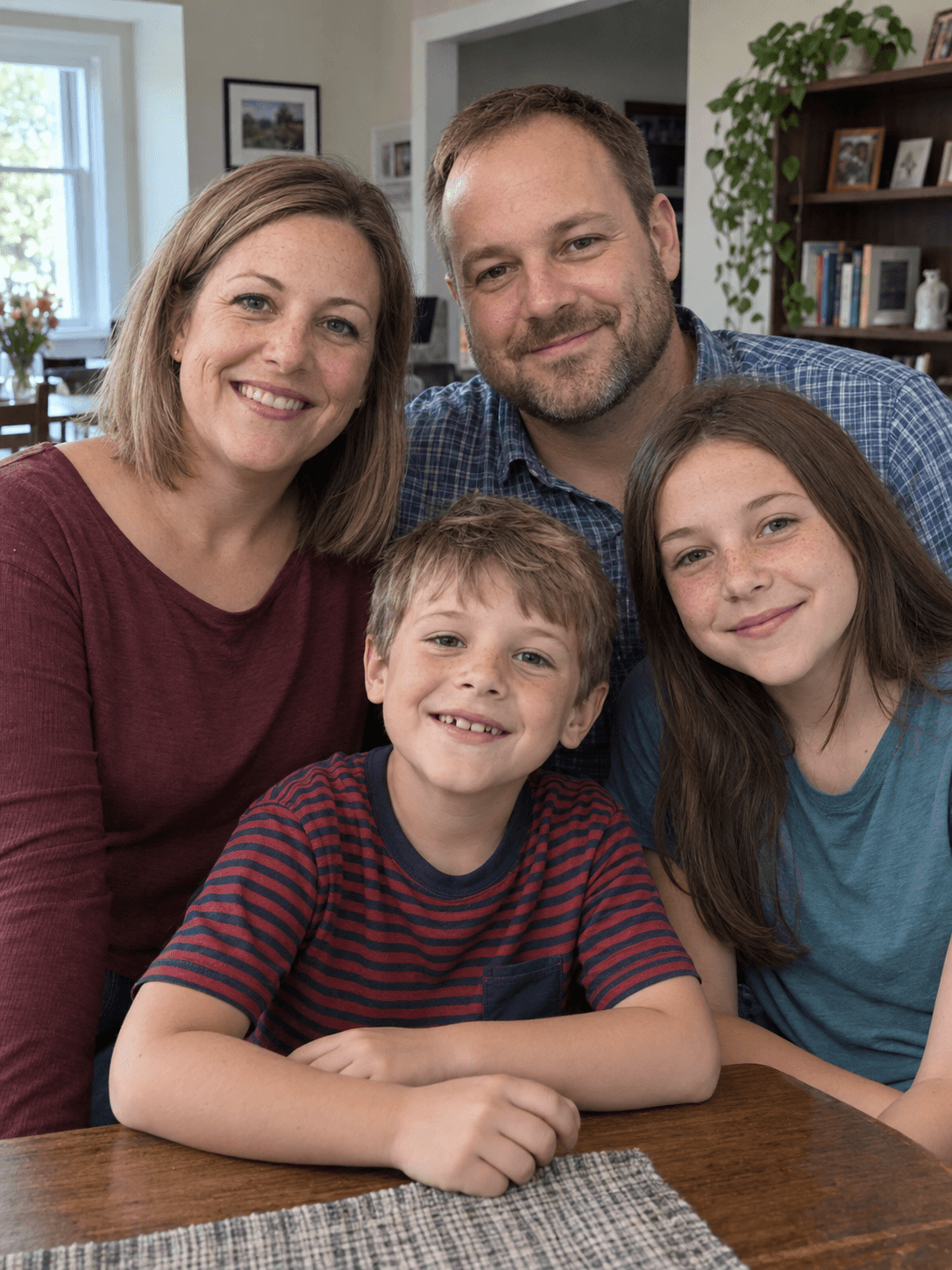
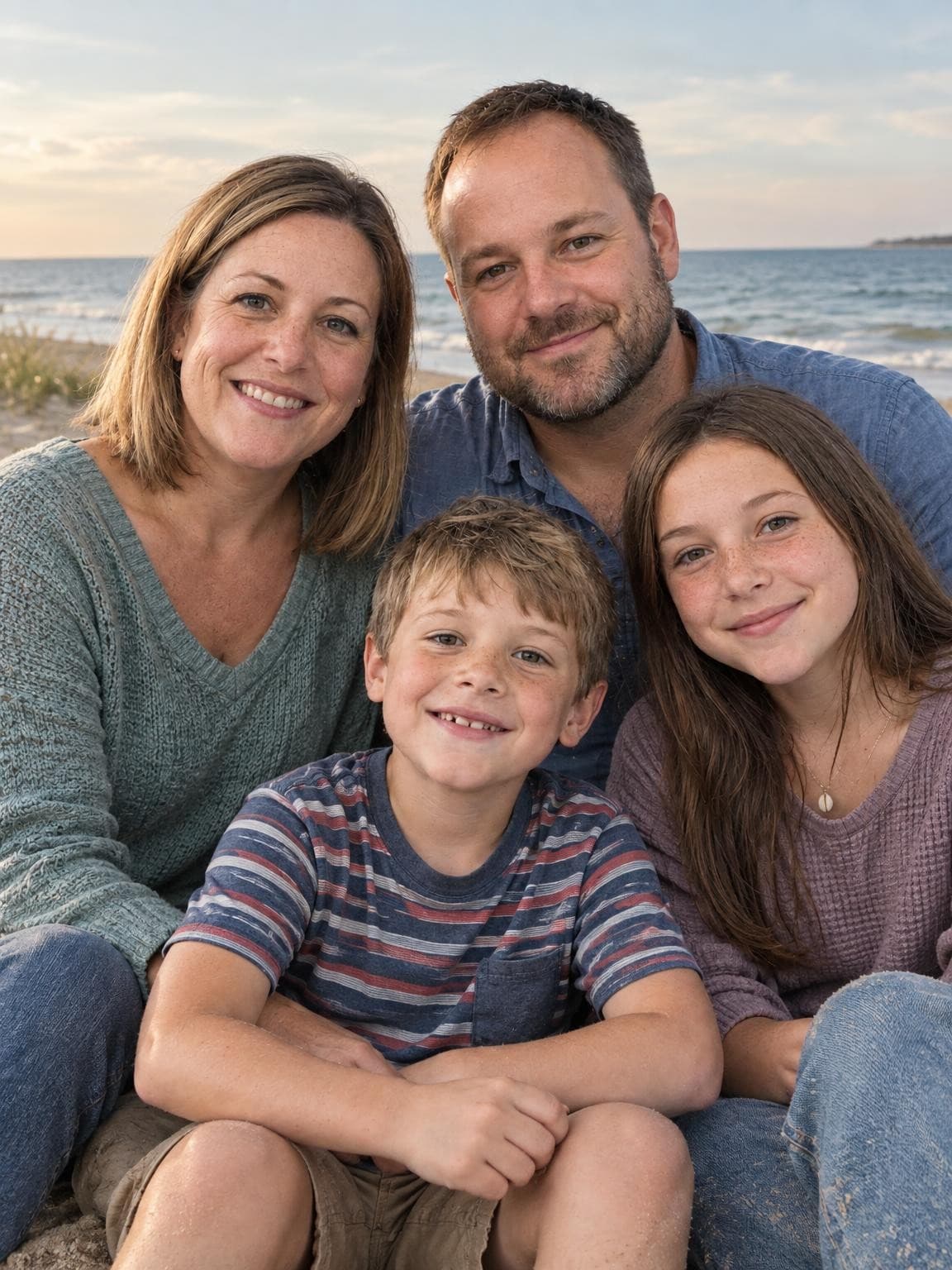
A practical guide to reference photos for AI family portraits. Start with clear faces, include everyone, then check the result person by person.
Go to the photo checklistThe references
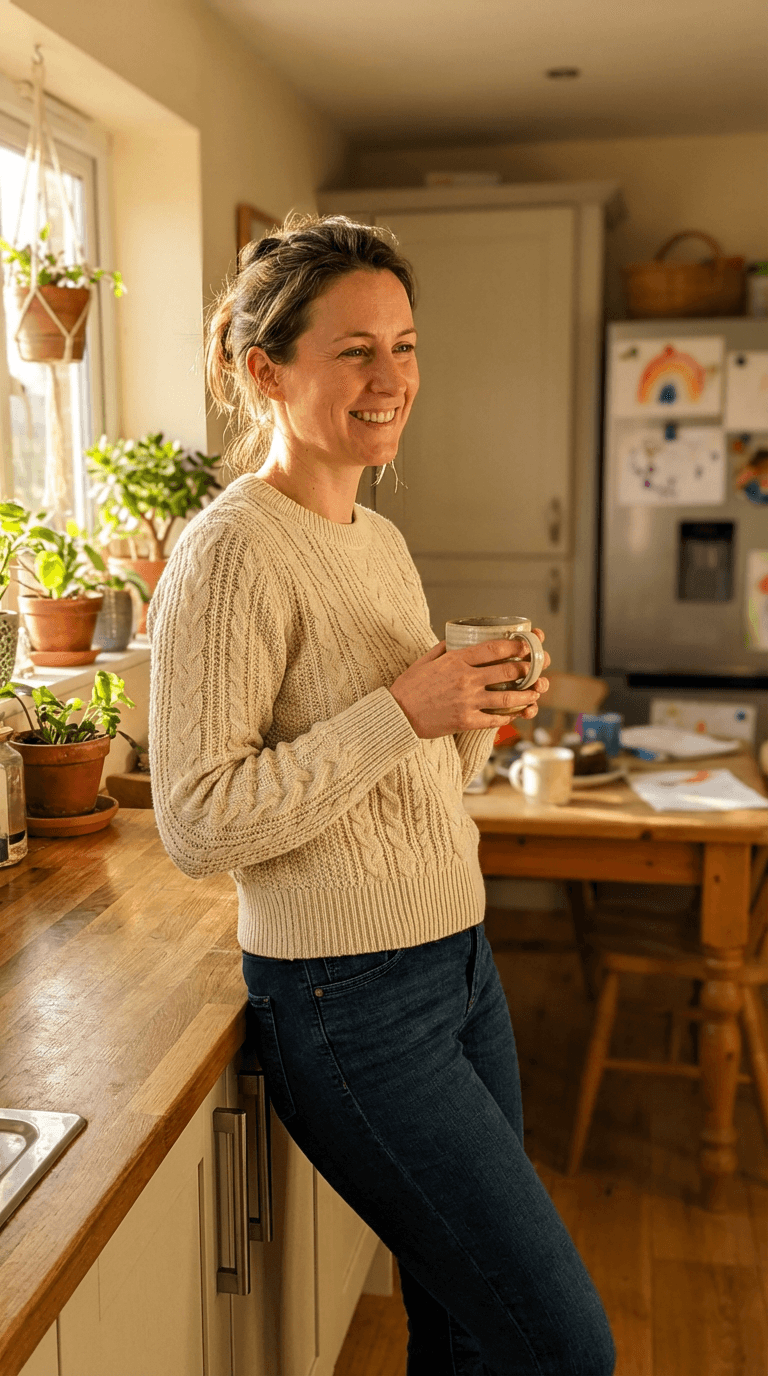
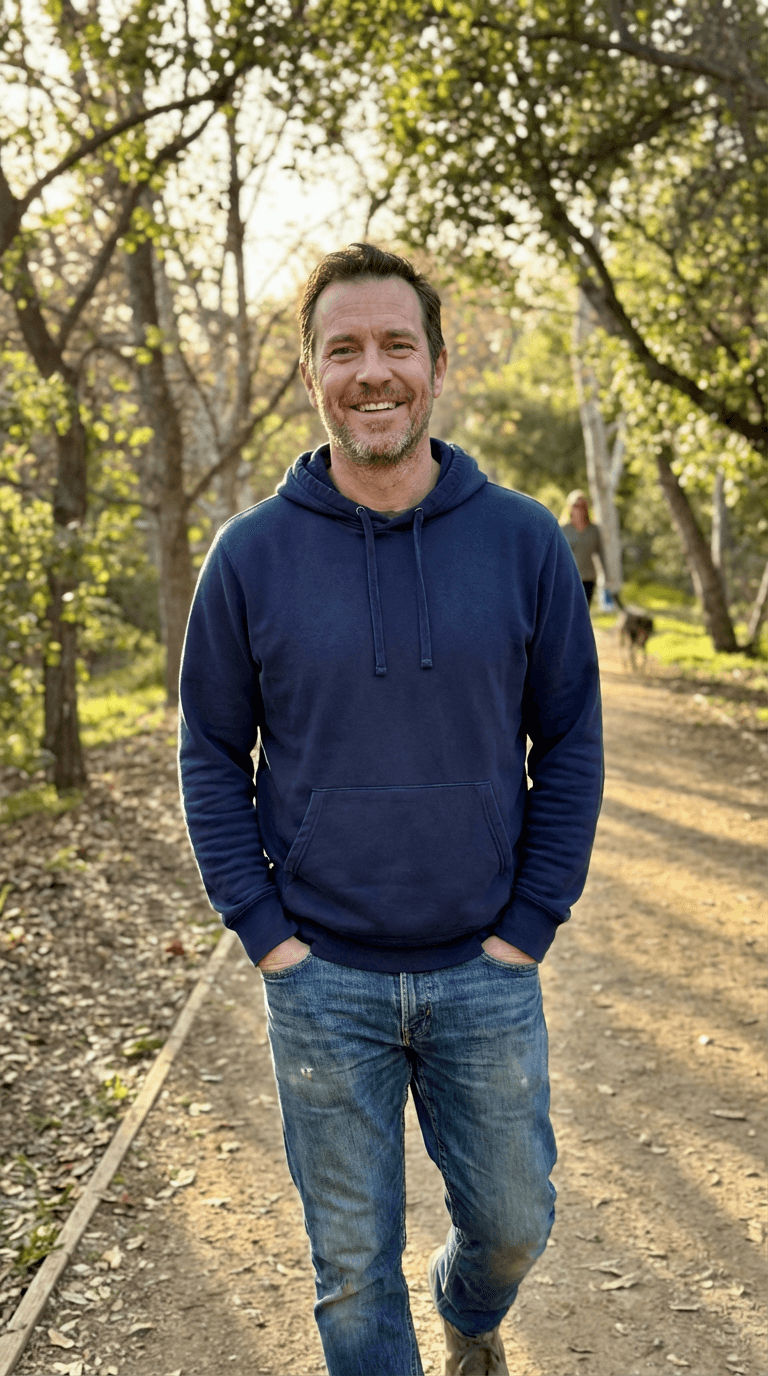
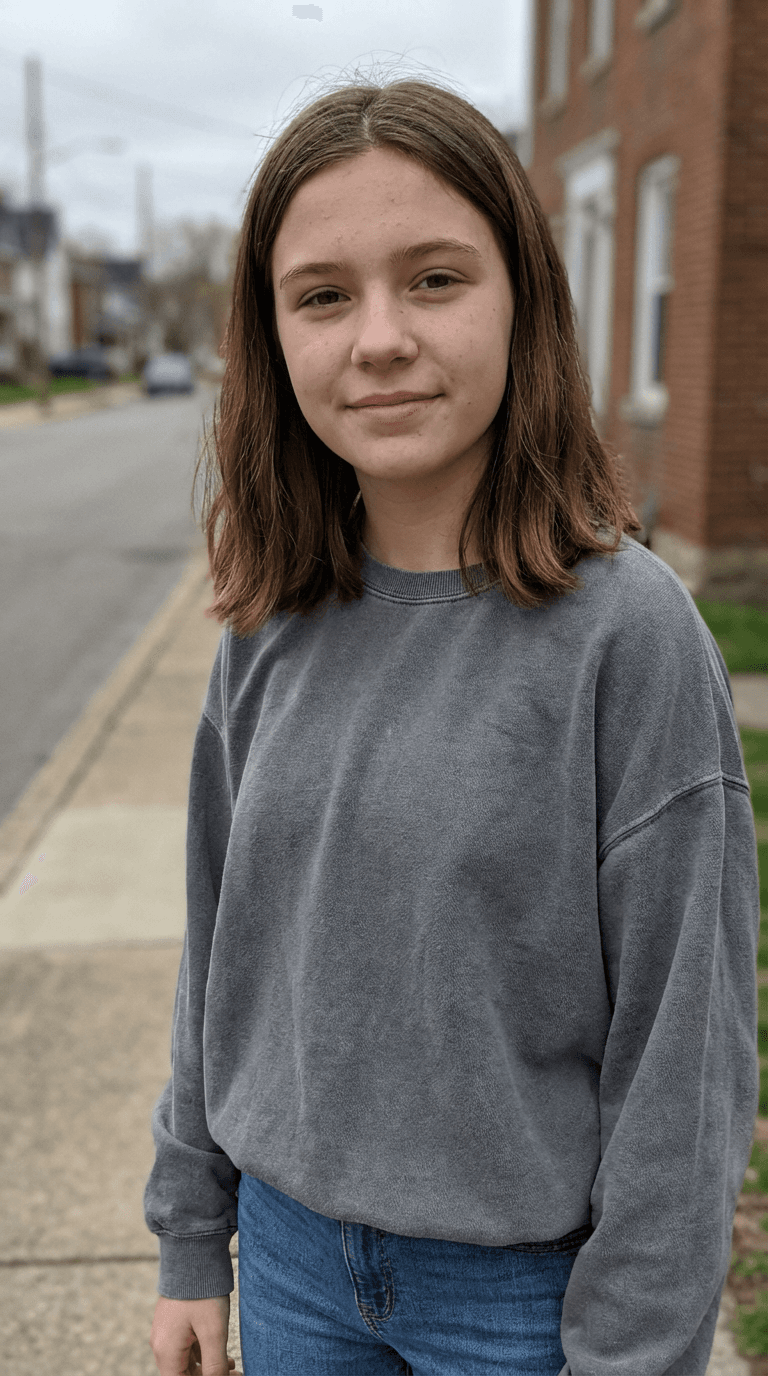
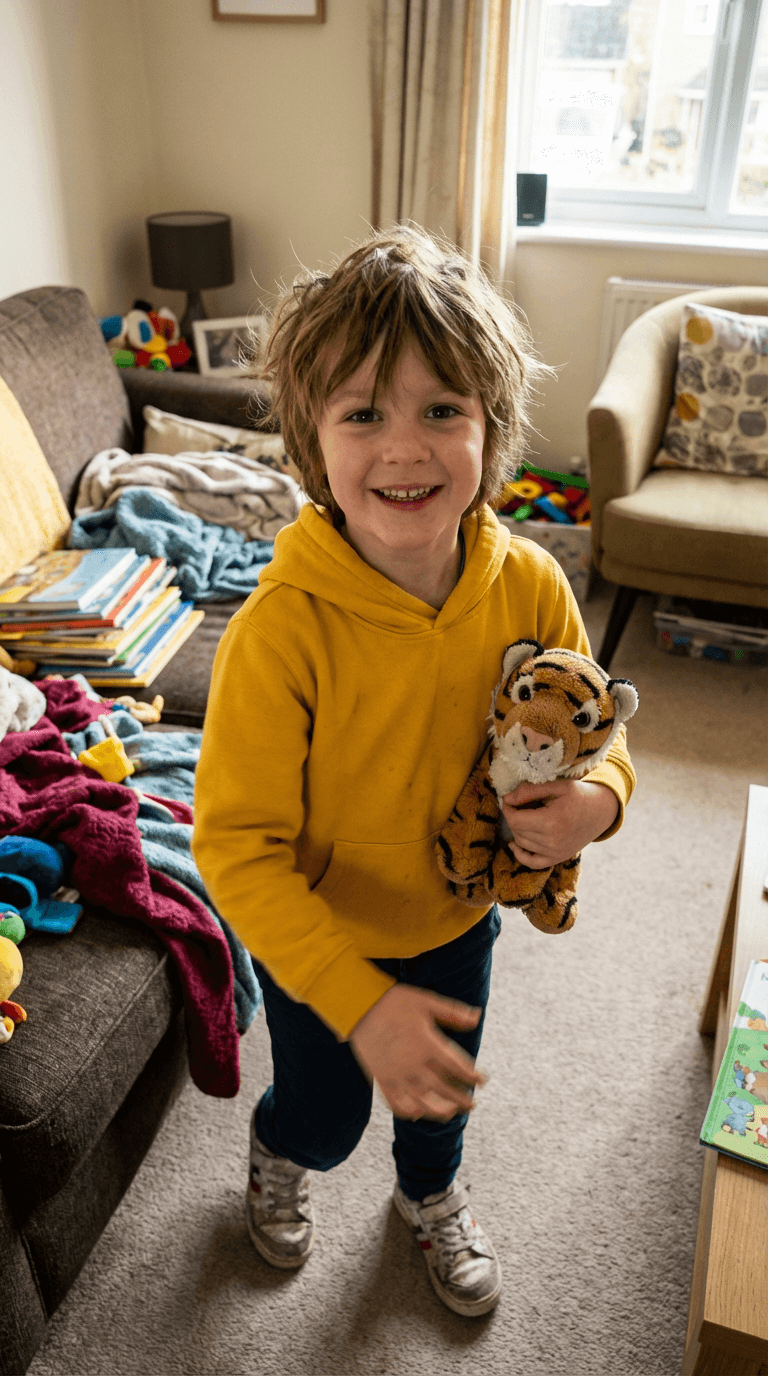
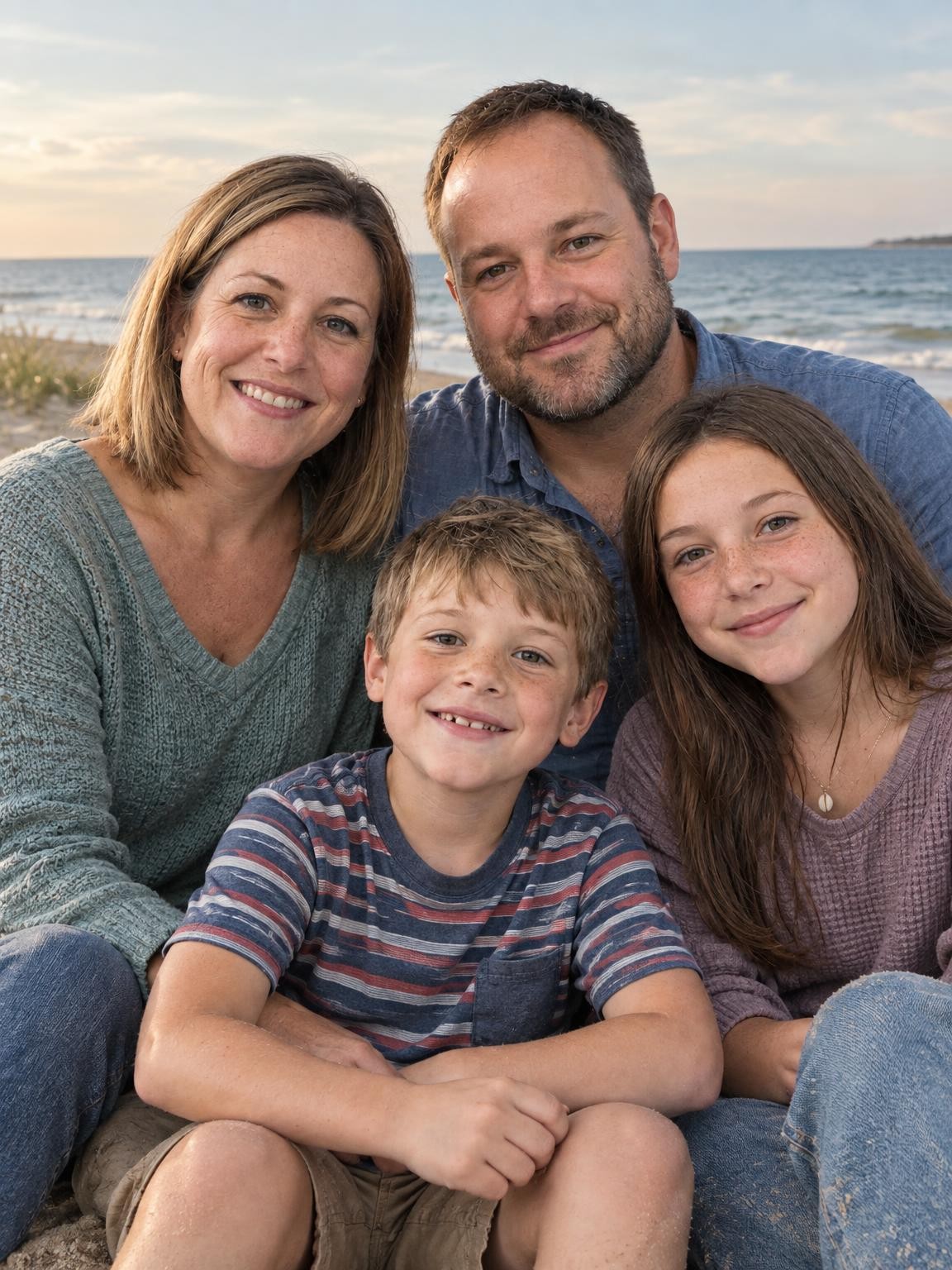
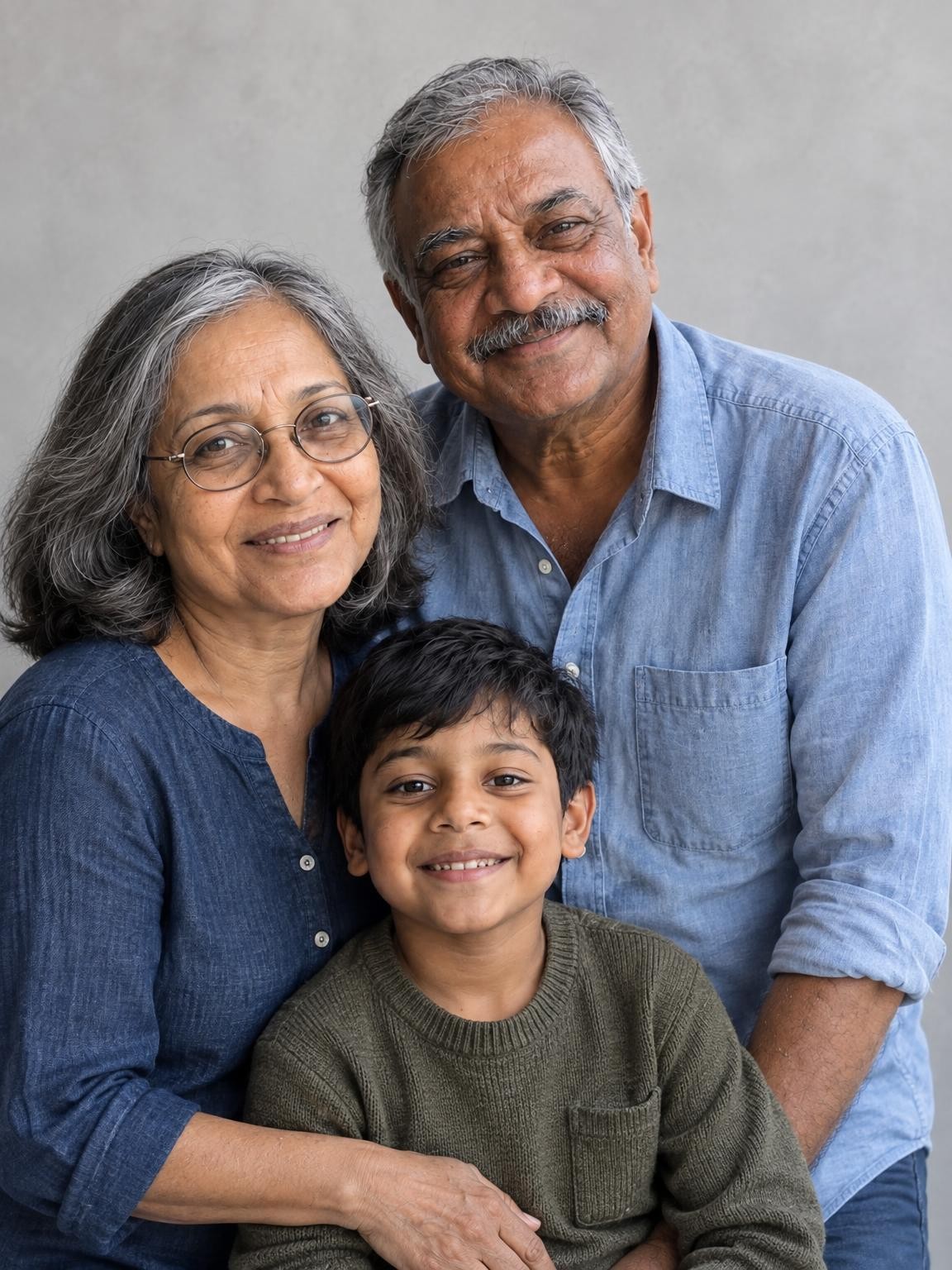
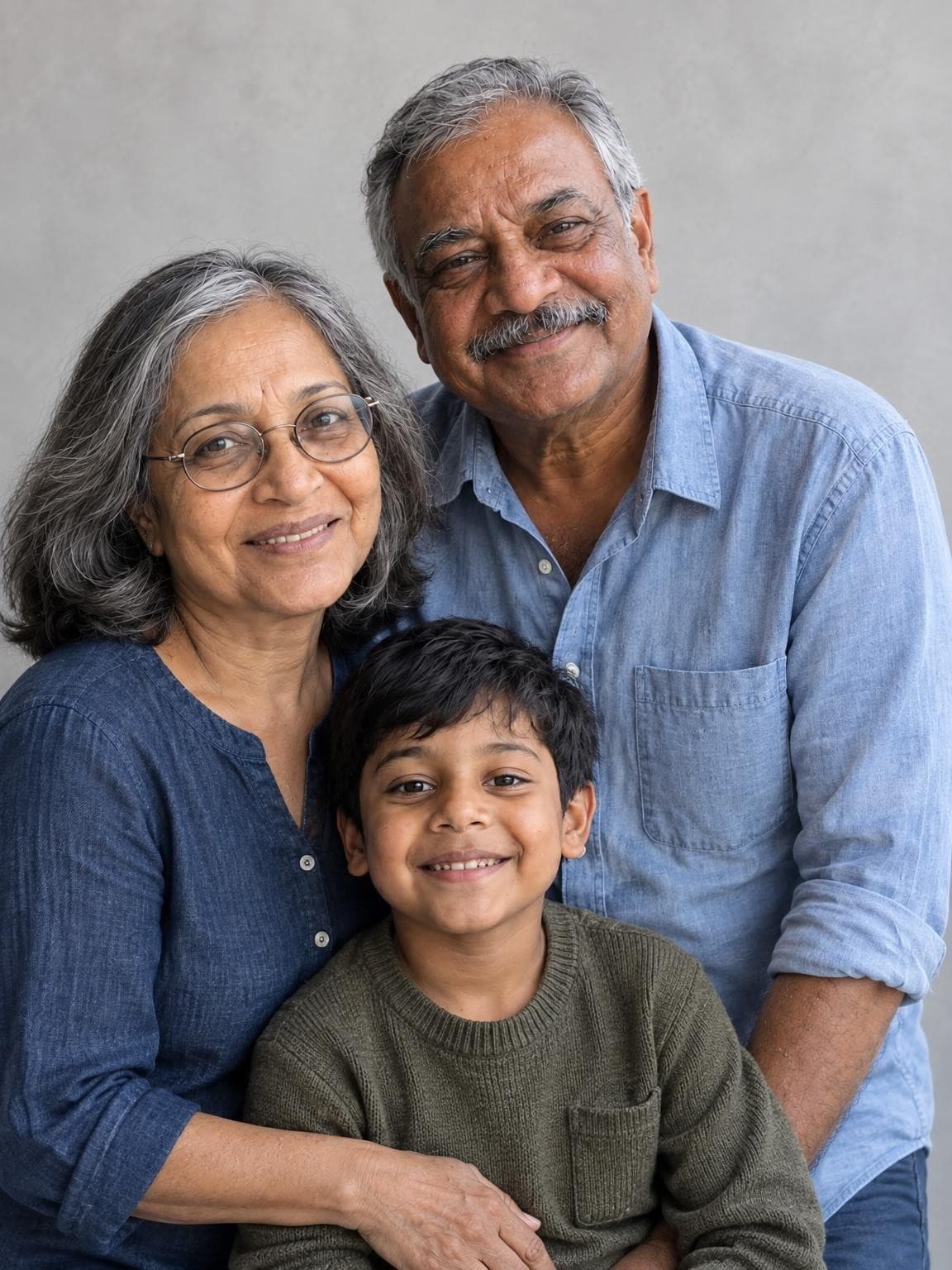
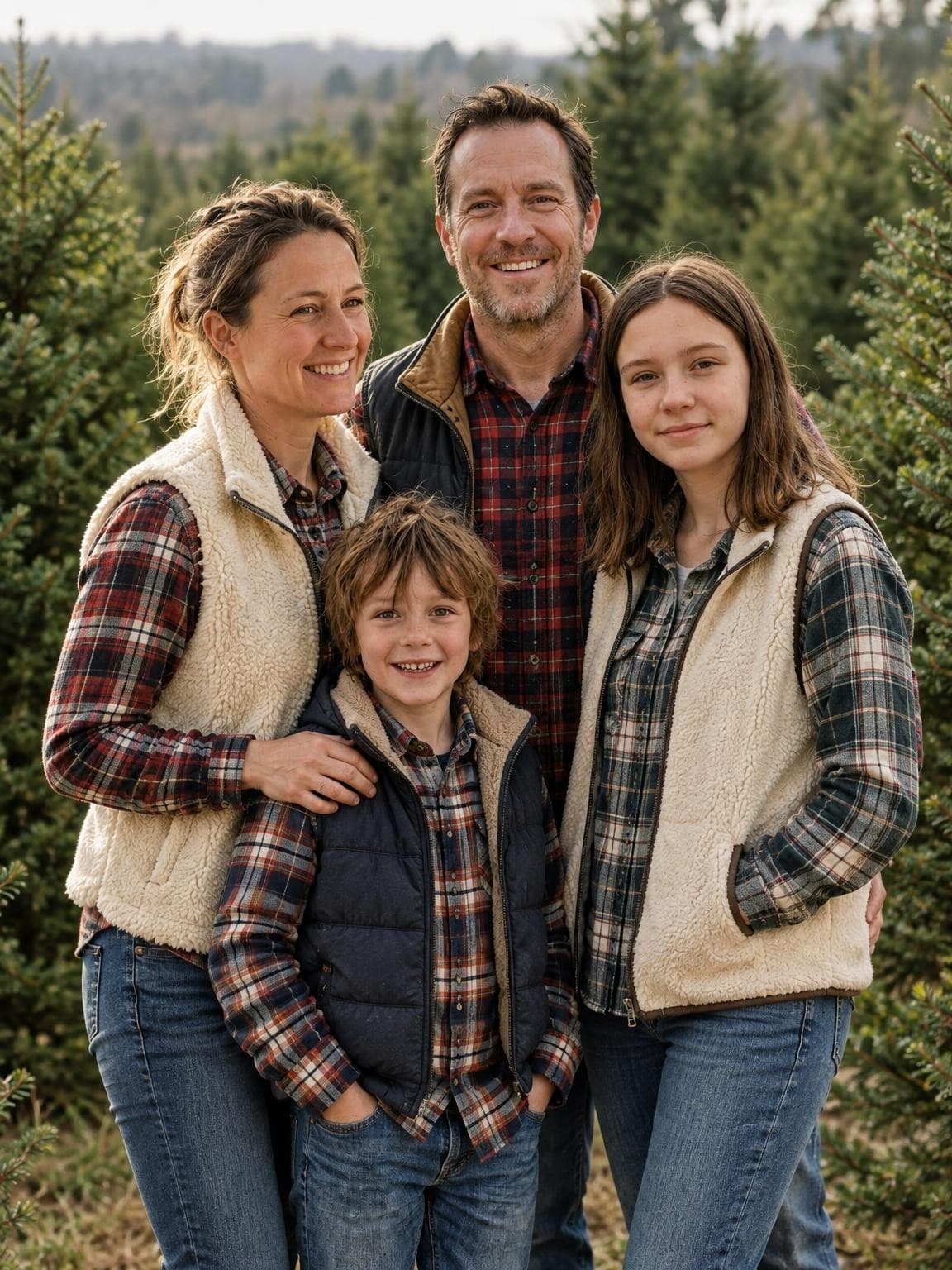
These are the four public demo references used for the results beside them. They do not need matching clothes or backgrounds.
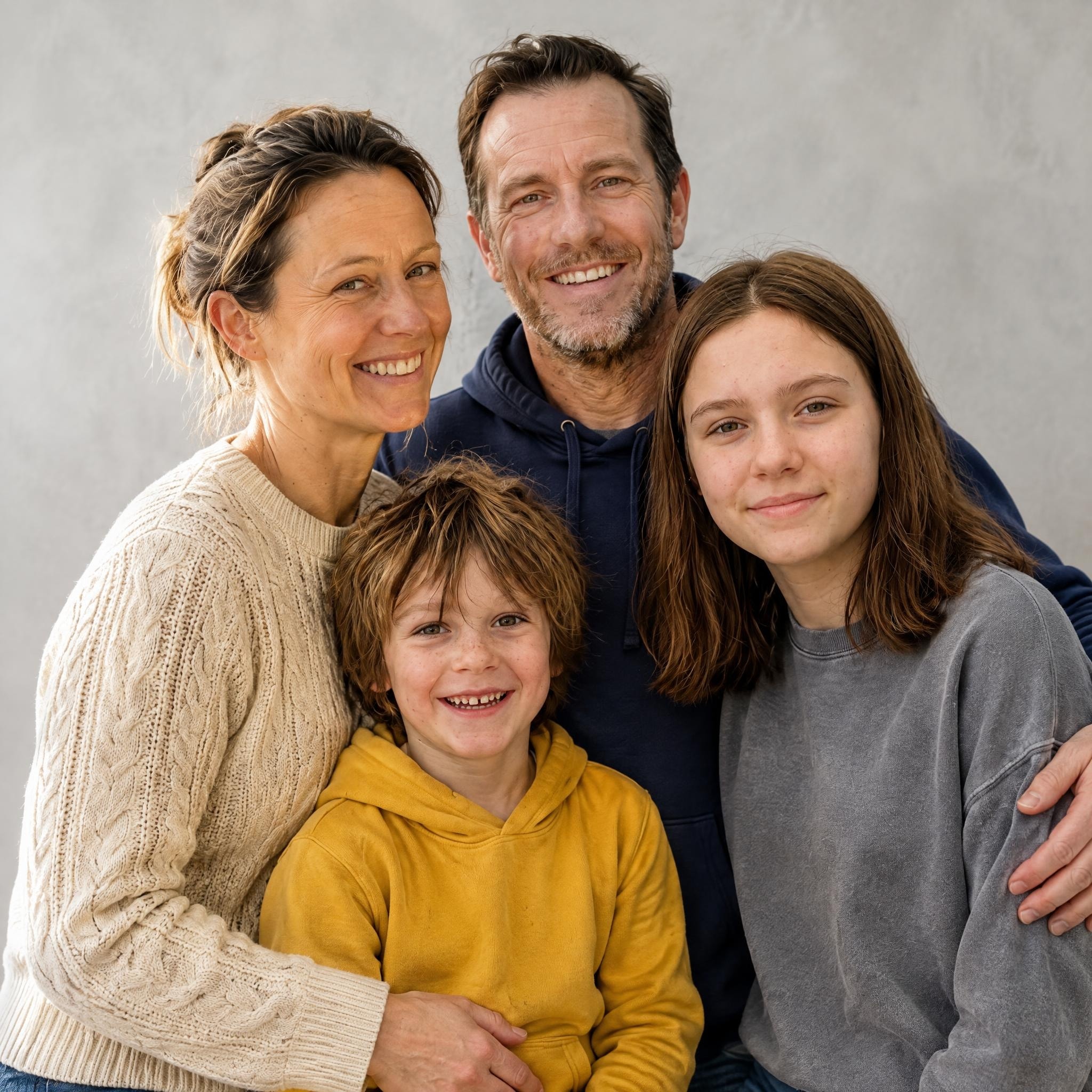
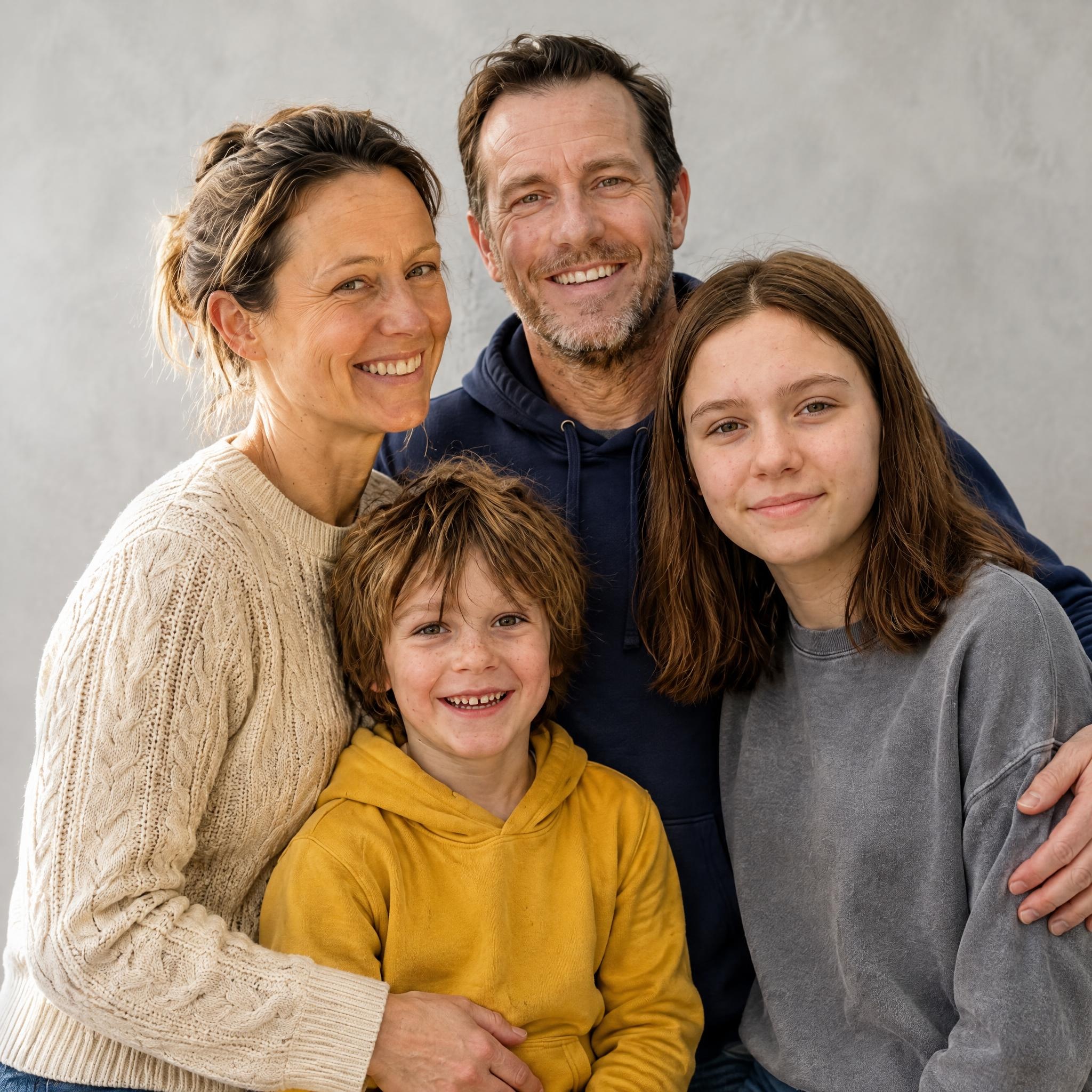
A selected September 29 result from four separate input files, generated with our portrait model at 2048 × 2048 pixels. Free previews use 1152 × 1536 pixels. This is one demo family, not a guarantee of your likeness or result. The clothing, pose and setting are newly generated.
Starting with a group photo
If all the faces are clear, you can start with a group photo. Check that glasses, hair, facial details and apparent ages carry through to the new portrait.
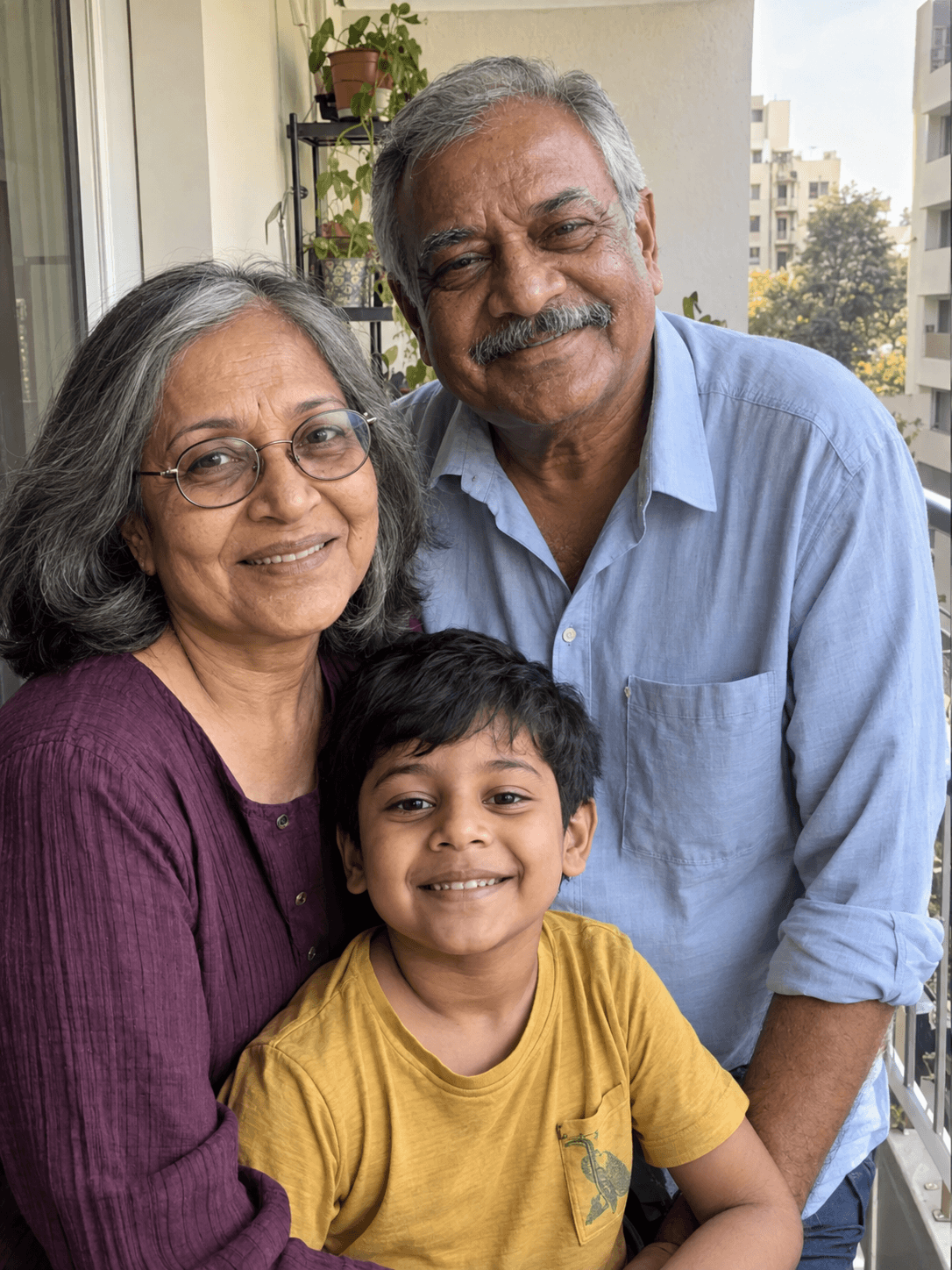
These two families are fictional: we generated the reference images with AI, then used our portrait model to make the results shown. They demonstrate the workflow and styling; they do not establish likeness accuracy for real families.
Before you upload
You can upload 1–6 reference photos total. More files are only useful if they add clear, consistent information about the people you want in the portrait.
Choose a sharp photo with even light on the face. Eyes, nose, mouth and hairline should be visible. Skip sunglasses, heavy beauty filters and photos where another person covers part of the face.
Use photos that show how each person looks now, or at the age you want represented. Mixing a toddler photo with a much older photo of the same child gives the model conflicting references.
Everyone you want in the portrait should appear in at least one reference. Separate photos are fine. Avoid a busy group photo full of people who should not be included; choose a clearer individual photo when you can.
Use a camera-roll original where possible. A screenshot, tiny social-media thumbnail or repeatedly forwarded image can hide the facial details you need to judge likeness. Cropping cannot recover detail that was never there.
After the preview appears
A beautiful background can make a portrait feel finished before you’ve checked the details. Open the full-size preview and compare it with your originals.
If the preview is wrong, don’t assume a paid gallery will fix it. Review your references before buying. For help with an existing order, contact us with your gallery link, affected photo numbers and the specific quality issue for review under our refund policy.
Explore Christmas portrait scenesIf a preview needs work
Open Edit photos on your preview. Each photo has its own Replace and Remove buttons, including references from a saved preview. Your scene and gallery choices stay selected.
Replace that person’s unclear reference with a recent, well-lit photo. Keep the face large enough to inspect. A clearer reference may help; it does not guarantee an exact likeness.
Check every reference for bystanders, hidden faces and inconsistent ages. Remove a crowded image or replace it with a clearer one. Six upload slots count files, not people.
Choose See my free preview after making your changes. Compare every face again. Buying more gallery variations does not increase the rendering quality or promise to correct an unsatisfactory preview.
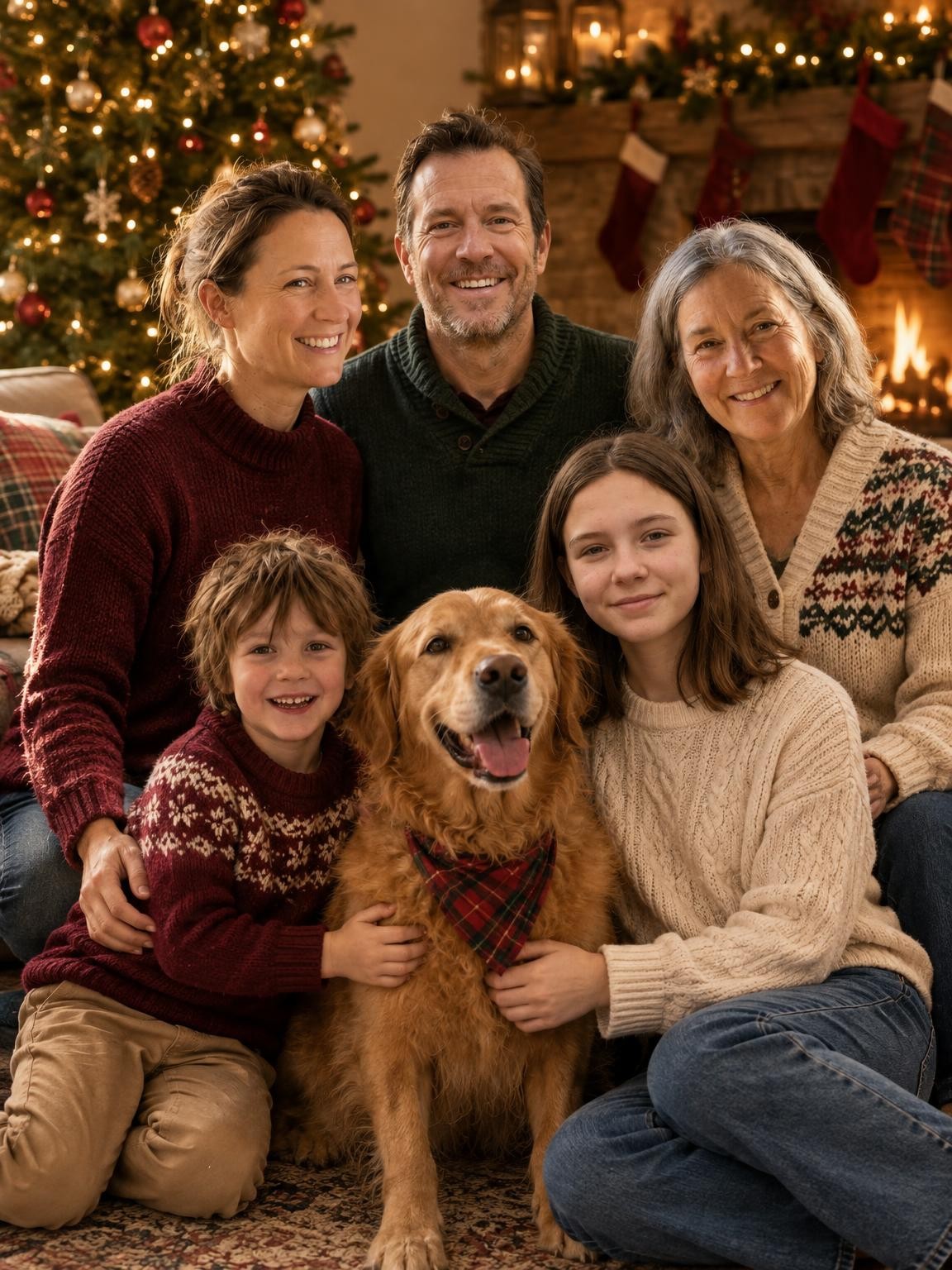
For this test we added a grandmother’s photo and a separate photo of the family dog to the same four references. The selected result includes all five people and one dog.
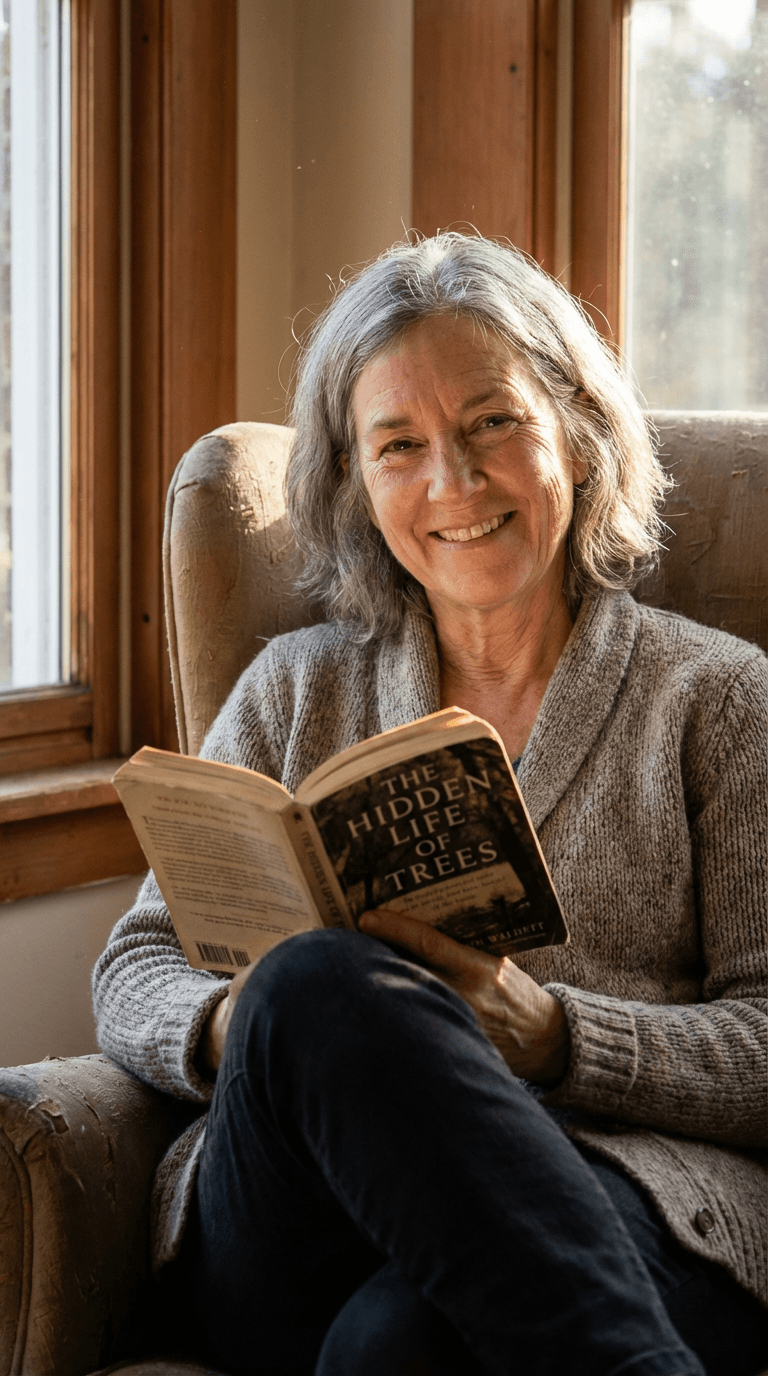
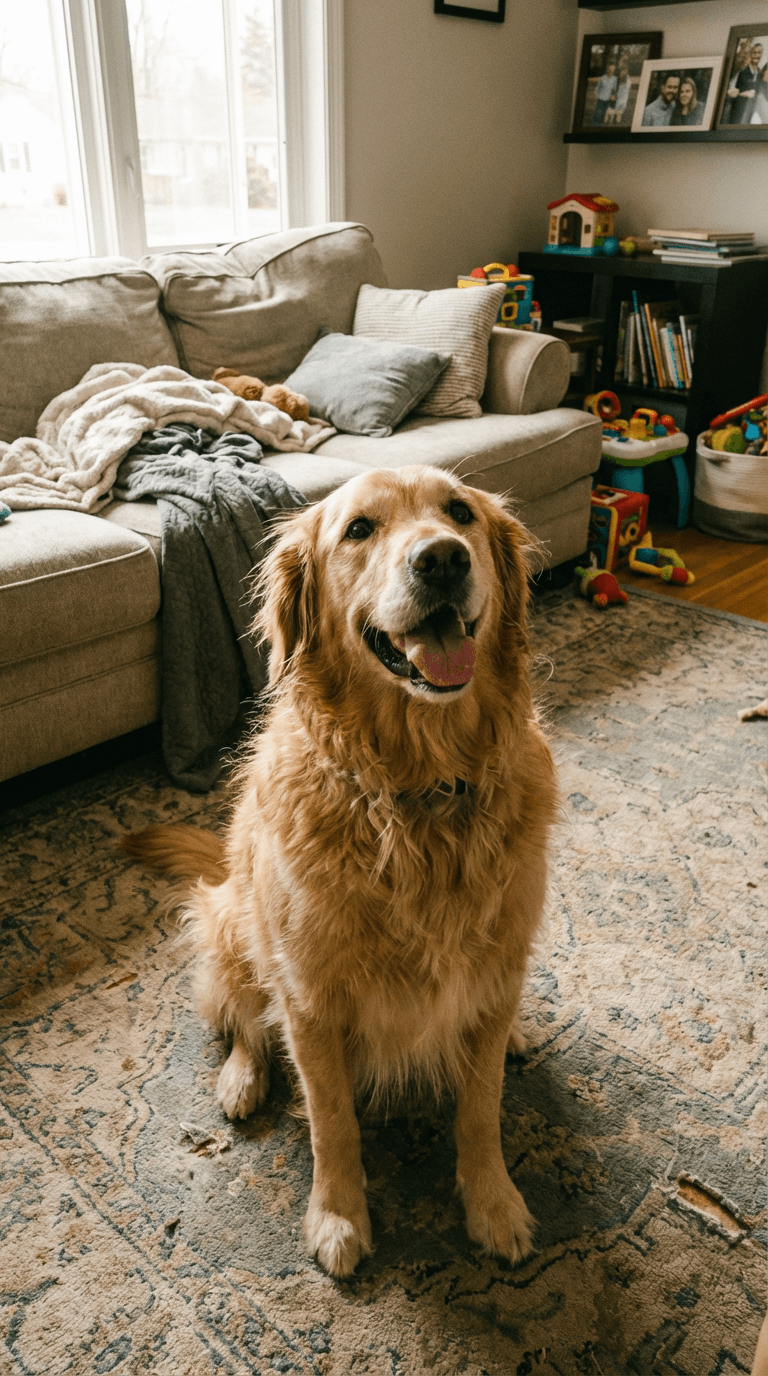
This is one selected output from one demo family, not a measured success rate for larger groups. Our upload limit is six photos total. Try your own free preview before paying.
Try your family in this scene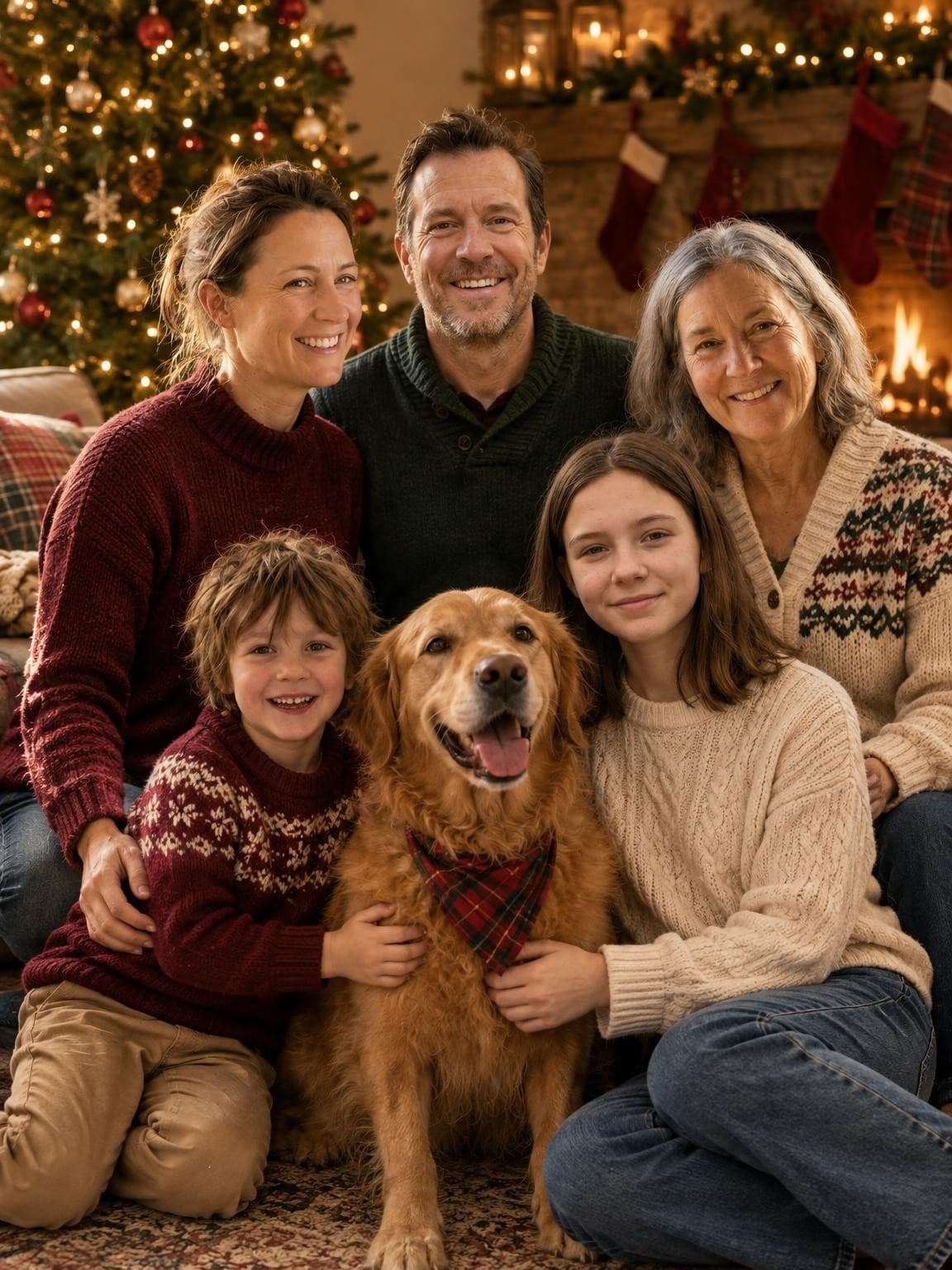
Our creator accepts 1–6 photos total, across the whole family. Start with the clearest set that includes everyone. Six upload slots are not a promise that any six-person group will be reproduced accurately.
No. The four separate inputs shown here were used to make these example portraits. AI makes a new composition; it does not simply cut out and paste the original faces.
Yes. The creator accepts JPG, PNG and HEIC photos. If your browser cannot read a particular file, it will ask for a JPG or PNG version before proceeding. Large photos are resized for upload.
Include a clear reference of the pet you want shown. Check the preview for the correct animal, markings and number of pets. Toys, animal prints and animals in the background can complicate the result; do not assume the model understood every detail.
No exact likeness is guaranteed. AI can change faces, ages and small details even with clear references. The free preview lets you check your own result before choosing a paid gallery; gallery photos are new variations and can differ from that preview.
Your first preview is free, with no account or card. Paid digital galleries start at $19. Read how we handle your photos before uploading.
Try my photos in a free previewDownload the original file from your gallery. A screenshot can reduce detail. Check the image dimensions and card crop before sending it to a printer.
Check the crop and print sizeSee how the family portrait creator works